


Announcements in Forum : Classified Boards
 Jan 29, 2008 until Mar 1, 2027


Using the iTrader System
ThirdGen.Org offers the iTrader System to members so they can rate and review transactions between buyer and seller that take place on our Classifieds. The iTrader System is much like eBay's feedback system.
ThirdGen.Org strongly advises that you not only perform a search on the member you are considering a transaction with (especially in the Classified Ads Feedback forum ), but to also review their iTrader score.
Viewing the iTrader score of a member
Viewing the iTrader score of each member is simple as their iTrader score appears inside each of their posts, as illustrated below:
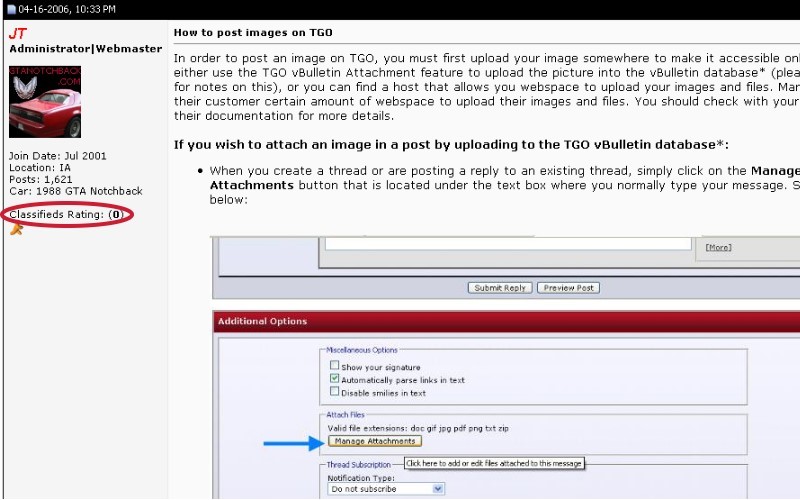
The bold value between the brackets of the "Classifieds Rating" represents the member's iTrader score. To thoroughly review the member's feedback, or to rate the member, you must click on the bold value that is between the brackets to be taken to their feedback profile.

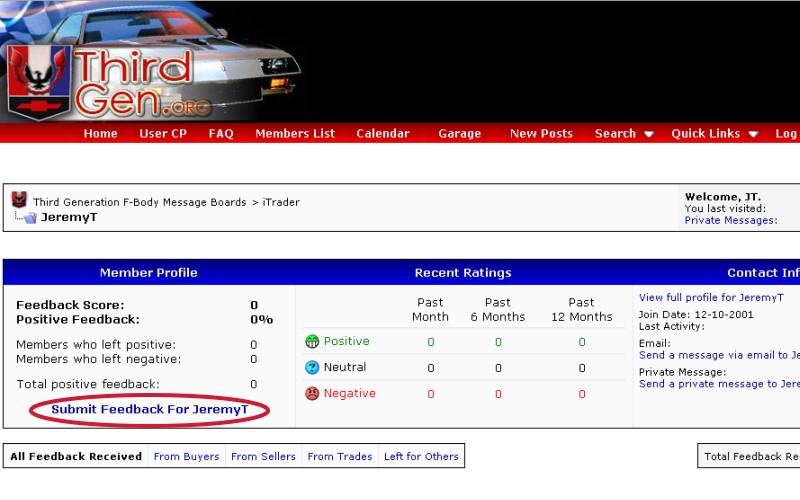
The illustration above is a view of a member's iTrader feedback profile. You can view details of each transaction that a member has been rated for, as well as scores for Negative, Positive or Neutral.
Note: If a member has been rated by other members, you will see a Rating Summary with a list of each transaction and rating that the member has been rated for. Under the Rating Summary section, you can click on a title of a listed transaction to view any notes between both parties that were left for that particular transaction, as well as the ability to view the thread that the member was being rated for.
Rating a Member:
1) To rate a member on a transaction that took place on our Classifieds forum, you must first find the thread that the transaction had originated from.
2) Once you have found the thread that the transaction had originated from, click the value in the brackets for the "Classifieds Rating: (0)", which appears in the left side of the screen of the post of the member you are going to rate.
3) You are now viewing the member's iTrader feedback. Click on the link "Submit Feedback For (member's name here)", as the illustration below shows:
You are now viewing the submission form that will be used to submit the feedback for the member you are rating:
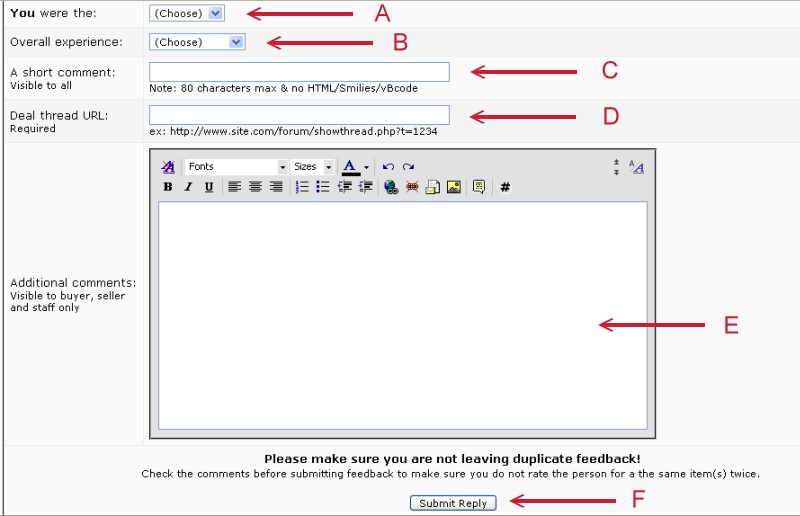
4 A) From the drop-down menu, select the party you were in the transaction (Buyer or Seller)
4 B) From the drop-down menu, select the rating you wish to give for the transaction (Positive, Negative or Neutral)
4 C) In the comment box, enter in a brief description of the transaction, such as comments like "Great communication", "Smooth transaction", "Would deal with again", etc.
4 D) In the "Deal thread URL", enter the URL of the thread that the transaction had originated from. The URL is the web address for the thread that the transaction had originated from.
To find the URL/Address of the thread that transaction had originated from, open a new browser window/tab to find the thread that the transaction had originated from.
Once you have found the thread, find the URL/Address in your browser's address field (top section of your browser) and right-click your mouse over the address, select "select all", then select "copy". The address/URL of the thread should now be copied to your operating system's clipboard.
Next, go back to the window/tab in your browser that you were using to enter the feedback submission form. Right-click your mouse inside the "Deal thread URL" and select "paste". The address/URL of the thread should now be posted in the "Deal thread URL".
4 E) Add any comments you wish to include, that are relevant, to the transaction in the "additional comments" section.
4 F) Click on the Submit Reply button to post the rating.
ThirdGen.Org strongly advises that you not only perform a search on the member you are considering a transaction with (especially in the Classified Ads Feedback forum ), but to also review their iTrader score.
Viewing the iTrader score of a member
Viewing the iTrader score of each member is simple as their iTrader score appears inside each of their posts, as illustrated below:
The bold value between the brackets of the "Classifieds Rating" represents the member's iTrader score. To thoroughly review the member's feedback, or to rate the member, you must click on the bold value that is between the brackets to be taken to their feedback profile.
The illustration above is a view of a member's iTrader feedback profile. You can view details of each transaction that a member has been rated for, as well as scores for Negative, Positive or Neutral.
Note: If a member has been rated by other members, you will see a Rating Summary with a list of each transaction and rating that the member has been rated for. Under the Rating Summary section, you can click on a title of a listed transaction to view any notes between both parties that were left for that particular transaction, as well as the ability to view the thread that the member was being rated for.
Rating a Member:
1) To rate a member on a transaction that took place on our Classifieds forum, you must first find the thread that the transaction had originated from.
2) Once you have found the thread that the transaction had originated from, click the value in the brackets for the "Classifieds Rating: (0)", which appears in the left side of the screen of the post of the member you are going to rate.
3) You are now viewing the member's iTrader feedback. Click on the link "Submit Feedback For (member's name here)", as the illustration below shows:
You are now viewing the submission form that will be used to submit the feedback for the member you are rating:
4 A) From the drop-down menu, select the party you were in the transaction (Buyer or Seller)
4 B) From the drop-down menu, select the rating you wish to give for the transaction (Positive, Negative or Neutral)
4 C) In the comment box, enter in a brief description of the transaction, such as comments like "Great communication", "Smooth transaction", "Would deal with again", etc.
4 D) In the "Deal thread URL", enter the URL of the thread that the transaction had originated from. The URL is the web address for the thread that the transaction had originated from.
To find the URL/Address of the thread that transaction had originated from, open a new browser window/tab to find the thread that the transaction had originated from.
Once you have found the thread, find the URL/Address in your browser's address field (top section of your browser) and right-click your mouse over the address, select "select all", then select "copy". The address/URL of the thread should now be copied to your operating system's clipboard.
Next, go back to the window/tab in your browser that you were using to enter the feedback submission form. Right-click your mouse inside the "Deal thread URL" and select "paste". The address/URL of the thread should now be posted in the "Deal thread URL".
4 E) Add any comments you wish to include, that are relevant, to the transaction in the "additional comments" section.
4 F) Click on the Submit Reply button to post the rating.
__________________
JT
Community Administrator
JT
Community Administrator
Feb 13, 2007 until Feb 13, 2027
Having Trouble Posting In Classifieds Section?
In order to participate in the For Sale section of our Classifieds on ThirdGen.org, you must be a Registered member for atleast 15+ days and have some contribution to the community's technical sections in addition to being an active account.
This requirement helps reduce the abuse and spam on ThirdGen.org's Classifieds section.
Note, the above restrictions do not apply to the Wanted section.
If you have been a registered user on ThirdGen.org for 15+ days and still cannot post in the Classifieds section, please ensure the following:
1) You are logged in.
2) Ensure that you're attempting to post into the correct section of the Classifieds. The Classifieds are made up of several sub-forums. You can only post in the sub-forum section.
For example, the Cars For Sale is made up of 2 sub-forums:
Camaros For Sale and Firebirds For Sale
Please note that if you're an inactive user, your account will not be immediately given the additional Classifieds permissions. The system only upgrades active accounts.
If you still have problems and need assistance, please use the Contact Us link: https://www.thirdgen.org/forums/sendmessage.php
This requirement helps reduce the abuse and spam on ThirdGen.org's Classifieds section.
Note, the above restrictions do not apply to the Wanted section.
If you have been a registered user on ThirdGen.org for 15+ days and still cannot post in the Classifieds section, please ensure the following:
1) You are logged in.
2) Ensure that you're attempting to post into the correct section of the Classifieds. The Classifieds are made up of several sub-forums. You can only post in the sub-forum section.
For example, the Cars For Sale is made up of 2 sub-forums:
Camaros For Sale and Firebirds For Sale
Please note that if you're an inactive user, your account will not be immediately given the additional Classifieds permissions. The system only upgrades active accounts.
If you still have problems and need assistance, please use the Contact Us link: https://www.thirdgen.org/forums/sendmessage.php
__________________
JT
Community Administrator
JT
Community Administrator